Wednesday, January 29, 2014

AppShopper Wishlist


A couple weeks ago, I blogged about two free apps to get young students composing--Tune Train and  Music4Kids. Unfortunately, the Music4Kids app was only temporarily free and is now $2.99. I'm sorry if you missed out on the sale. To insure that you won't miss out on any future sales, may I recommend AppShopper?


AppShopper is free and available as an app on your device or online from their website. You can create a wish list of apps that you would like to purchase in the future. You will receive a notification if the price changes on the app. If you don't think you will log into the site or don't want to install the app on your device, you can also request to receive email notifications when any of your wish list apps go on sale.


Make sure you check out the App Activity to see the price history as well as update history. You can see how often it goes on sale and predict when it might go on sale again. Below you can see that the Dr. Seuss Band was on sale from February-April 2012.  If it ever goes on sale again, it would likely be part of the Seuss birthday celebrations around March 2nd.


I have started my wish list of music apps that are not free in hopes that I can catch a sale in the future! Below you can see screenshots of my wish list. Are there any awesome apps I should add to my wishlist?


Dr. Seuss Band is only 99 cents. This is a great price for an app, but I haven't attempted spending school money on apps yet. The process described by our tech department sounded very complicated and I've avoided it, so far, by downloading free apps.

If you missed my post of 110 Free Music Apps, follow this link!

Saturday, January 18, 2014

Free Apps For Young Composers


I have found two more free apps that allow young students to explore music composition.

Tune Train

The first app is called Tune Train. There are 10 musical worlds available to explore.  Each world features a different musical style.

 iPad Screenshot 5
On each beat, you see people high and low. They essentially outline a chord. You use the train to draw a path and select people/notes you want in your melody. If you want to omit a note on that beat, you can make the train bypass that stop completely. This gives you options to alter the rhythm as well. Each student could create a truly unique song even if they selected the same musical world.

iPad Screenshot 2

You can also view the actual music notation at the top of the screen.

iPad Screenshot 4

Here is a video demonstrating the app:


___________________________________________________
Music4Kids
The second app I have found is called Music4Kids. In this app, you see an actual treble clef staff. When you place a note on the staff, the pitch name also appears above it. Each note defaults as an eighth note. To make longer durations like quarter and half notes, you must hold your finger on the screen for a longer time.
iPhone Screenshot 1
There are 5 different musical planets available: birdy, hamster, octopus, fox, and ghost.
iPhone Screenshot 4
There is an option to save your composition to your "My Tunes" library. This may be a helpful tool for teachers. If students create a song during class, the teacher can go back through later to view what their work.

There is also a part of the game called "Challenges." This is a simple introduction to melodic dictation. Initially, the app will show you the music notes and play the melody. Then, you must notate the melody. If you need help, you may listen to the tune again, but it will not show the notation a second time.
Here is a short video demonstrating the app:


___________________________________________________

Both apps are very kid-friendly and easy to navigate. The fact that they are free is also a wonderful bonus! I look forward to using these in the classroom.

Friday, December 20, 2013

Treble Clef Candy Cane Video Tutorial

Many of you may have already seen my previous posts about Treble Clef Candy Cane ornaments.


This is the 3rd year I have made these for my Choir and Orff kids. I've gotten pretty fast and efficient at making them over the years. I decided to make a video this year. Perhaps it can give you a few tips to save you some time as well.


I have also uploaded the file for the Christmas card in case you don't want to start from scratch.
I uploaded it as a publisher file instead of a pdf so you may edit it to suit your needs.


I apologize for not posting this sooner. I'm sure all of you are on Christmas Break already. I'll try to post holiday tips in advance next time. I hope everyone has a very merry Christmas!

Sunday, December 15, 2013

Blubbr Vs. eduCanon: Creating Online Video Quizzes


I have recently been introduced to two websites that allow you to create quizzes using videos on YouTube or other websites. I have explored both sites and would like to share my observations to assist you in selecting a tool for your classroom.


I created an easy infographic above, but will give a more detailed explanation below.


Video Selection

If you want to combine clips from more than one video, Blubbr is the choice for you. You can only select one video for each quiz with eduCanon.

If you want to show more than 19 seconds of the video before inserting a question, eduCanon is the choice for you. But, with eduCanon, you have to show the video in its entirety. You cannot trim the video or skip to a specific time marking. With Blubbr, you can select any clip (up to 19 seconds) from any part of the video.


Creating Questions/Answers

Blubbr has a minimum of 5 questions and you MUST create a 4 option multiple choice question. EduCanon has no limitations or minimum requirements on questions. With eduCanon, you can create 2 or more multiple choice selections for each question.

EduCanon also allows for more customization offering different font choices, bold, italics, font color, font size. You can even insert pictures or charts into the question.

Below is a screenshot while editing in Blubbr:

Below is a screenshot while editing in eduCanon:

Scoring/Tracking

Blubbr times the questions and gives you 20 seconds to answer each question and you are rewarded more points for answering more quickly. You are shown a score at the end of the quiz, but individual scores are not reported to the quiz creator or teacher.

EduCanon gives the student unlimited time to answer the question. If the video is shared publicly, there is no score tracking. However, if students create usernames, the teacher can assign specific videos to students and get a report of their individual scores.

Viewing the Quiz

When each question appears on Blubbr, you cannot see the video anymore. You can see colored dots at the top of the screen tracking your progress in the quiz.  They change green if you answer correctly and red if you answer incorrectly. The student has the option to skip the video clip and advance directly to the question if they wish. Below are two screenshots showing the video screen and then the question screen:


EduCanon questions appear to the left side of the video screen and you can still view the paused video. You can view the timeline on the bottom to show your progress in the quiz. Little question marks are used to show the student where the upcoming questions will appear. You are not allowed to skip ahead and advance the video. Below is a screenshot of the quiz:


Sharing

When you share a video publicly on eduCanon, a user will still need a URL link to view your quiz. Teachers can also assign videos to their students so they will automatically appear when they log in. At this time, EduCanon does not have a way to search for videos created by others.

If you post a video on Blubbr, it is automatically made public. There is no option to keep a video private. Blubbr has developed a great database to search for videos by title, keywords, or even category. When creating a video, you can pick up to 2 categories (Music and Education are available options) and you can also list many keywords. The education category is the largest and has more than 3000 trivs. Music is the second largest with over 1,300 trivs. Click here for a link to browse Blubbr categories.

Both sites allow you to share by URL or embed the quizzes into a website using html code.


Implementation

I decided to use Blubbr to create a video quiz for my Nutcracker unit. I really liked the freedom of eduCanon to insert questions wherever you would like, but I ended up choosing Blubbr because I could not show the full ballet and needed to be able to trim selections. Ideally, I would love a combination of these two sites which would allow me to use clips from multiple videos, but show video clips at least 30-45 seconds long. In the future, I will probably use both of these sites and evaluate the needs of each project before selecting the right tool.
Click below for links to my Nutcracker Blubbr Trivia!

Saturday, December 14, 2013

Nutcracker Resources

I have been teaching the Nutcracker for many years and my resources continue to grow!

The Story

My favorite book to share is a pop-up book that I got on sale one year in February for $3.99. Unfortunately, it is currently out of print. If you happen to see it in a used bookstore, snatch it up! Here is the full information:
The Nutcracker: A Magical Pop-up Adventure
Published by Macmillan Children's Books 2003-10-17, 2003
ISBN 10: 033396134X / ISBN 13: 9780333961346

The students are in awe of this pop-up, especially the spinning sugarplum fairy at the end!

Lesson Ideas

During my first years teaching the Nutcracker, we did little more than read the book and then dramatize the story with a few props and music selections. A couple years ago, I purchased a new resource book to create lessons with more music connections.
Nutcracker Suite
Active Listening Strategies for the Music Classrooom
By Wesley Ball
Book and CD (
$19.99 at westmusic.com)
.It includes many lesson ideas with a variety of activities. There are listening maps, printable worksheets, and a music cd. My favorite activity suggested by the book uses music from the March. When the students hear the trumpets, they are locomotor and march around the room. When they hear the strings, they are nonlocomotor and wave a scarf in the air. During the B section, when they hear flutes, they crawl on the floor and pretend to be mice. Many of the lessons encourage active listening and suggest activities to get the students engaged.

The Ballet

I always show portions of the full-ballet on video, skipping through the longer dance numbers due to time constraints. I was recently introduced to blubbr.tv and decided to use that site to create an interactive quiz. (To learn more about Blubbr follow this link.) I created 2 quizzes, one for each Act. The questions cover some basic music terms such as melody, harmony, dynamics, tempo, and instrument families. It introduces some basic ballet terms--pointe, plié, pirouette, and passé; and some basic theatre elements--costume, prop, scenery, and special effects. The video clips were taken from a YouTube video from a 2008 performance by the Royal Ballet. Follow the links below to find the quizzes.

Art

I also teach visual art once a week and stumbled across a few Nutcracker art projects on Pinterest. The students could be working on these projects while watching the ballet or listening to the music.
Grades 2 through 5 have had fun learning about symmetry making this project. We discuss how the ballerina has linear symmetry and the snowflakes have radial symmetry. Follow the link to the original post on krokotak.com for some printable templates and easy tutorial pictures.


Older students can practice symmetry by drawing Nutcrackers. This would take quite a bit of time to finish and would require more teacher guidance. I have not attempted this with students yet. I haven't had the time to invest in this project. If you have an art teacher at your school, perhaps you can suggest a collaborative unit. More sample pictures are featured on the original blog post at "A Faithful Attempt".


The younger students enjoy making these finger puppets. The free printables can be found on the website of the Birmingham Royal Ballet. To save paper, before copying I eliminated the instruction on each page to fit all 3 finger puppets on one page.  You can see this layout in the top picture of this post.
When searching for the original source for these finger puppets, I noticed they also have a new pair of finger puppets available and a project for a miniature theatre!

Coda

My students are always excited to see my Nutcracker sitting on the edge of my desk, but I think I may be more excited than them. I love the magic of the Nutcracker and look forward to teaching it every year!  Do you teach the Nutcracker? What are your favorite activities?
My 4 year old daughter is now in ballet class. Next year, we will start a tradition of seeing the Nutcracker live on stage. I can't wait!

Friday, December 13, 2013

Music Centers

During the week of Thanksgiving Break, I didn't want to start a lesson or unit when I wouldn't see all the classes of the week. So, we experimented with music centers. I have 50 minute classes, so I chose 4 centers. It took about 10 minutes to explain the games and then students travelled in groups and had about 10 minutes at each center. They seemed to enjoy them, so I will definitely try this again later in the year with all the classes. Once the kids have tried the centers, they would be great for emergency sub plans!

Giant Staff Twister


In a previous post, I shared the activity where we did relay races with our giant floor staff. Jen Fink, at pianamation.com, has used the floor staff to play a modified game of Twister. She created cards you can use for the game, one deck contains body parts (hands and feet) and one deck contains lines and spaces and they are available to print from her blog. We decided to make the game like traditional Twister and create spinners. The spinners are available on my teacher-pay-teacher store.


Boomwhacker Center


In the Boomwhacker center, students practiced note reading. They took turns playing songs from the book "Whack-a-Doodle-Doo!" I have 2 copies of this very affordable book ($5.95 from westmusic.com) One student would attempt to play a song. The next student in line would be able to flip through the extra book to select the song they would like to perform for their turn. This book includes colored notation made it easy for the older students to perform the songs. The younger students needed assistance, so my student teacher positioned herself at that center.

Connect 4 Composition

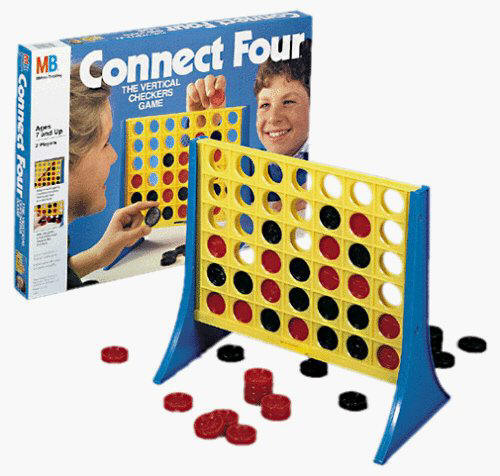
The younger grades used a Connect 4 game for rhythmic composition. They took turns filling the bottom row with checkers.  The red checkers represented a sound and the black checkers represented a rest. The students performed the rhythms on lollipop drums. Unfortunately, I did not get a picture of the younger students in action at this center.
For the older students, I used a more advanced game, Connect 4 x 4, with 4 different colors--red, yellow, green, and blue. I selected a few unpitched percussion instruments and the students would decide which instruments would play for each color. The students took turns creating new compositions and experimenting with different timbres at the same time. This version of the game has full and empty checkers. I forsee these representing quarter notes and half notes at some point in the future. (Connect 4 x 4 can be found on walmart.com for $19.86)


Technology Center

The technology center used the Interactive whiteboard and the iPad. On the Activboard, the students took turns on a game from nyphilkids.org. The game pictured below is "Music Match Instruments" which is a memory-type card game. I have also collected links to many other music sites and they can be found at this link.


They students could also play a music game on the iPad. Make sure you check out a previous post sharing 110 free music apps for the iPad. Kindergarten and 1st grade were playing rhythms on Monkey Drum. 2nd and 3rd grade were reading rhythms on Rhythm Cat. 4th and 5th grade were testing out a new app Cookie Beats. Look for a review of this app coming soon!


I have dedicated an entire Pinterest board to 
Check it out for more great ideas!


Friday, November 15, 2013

New Pinterest Board


I have noticed several photos from my blog floating around Pinterest with broken links. If you pin or repin something from my site, please make sure you are using an accurate link by pinning directly from my posts or from my new Music With Mrs. Dennis Blog Pinterest Board.


http://www.pinterest.com/beckasmiles/music-with-mrs-dennis-blog/


Don't forget to become a follower of the Pinterest board to stay updated on current posts. For more information about Pinterest, follow this link. You may also become a follower of my Facebook page. After each new post, I will cross post on Facebook and Pinterest.